Access and log out
Access the application
You can access the EI-Flow application in two ways:
- By logging in
- Via EI-Authoring, if available
Log in
To log in to the EI-Flow application:
- Open your Web browser and enter the EI-Flow application URL.
-
Enter your username and password, then select Sign in.
Or:
If Single Sign On (SSO) has been configured, select one of the options under Or sign in with.
If you don't remember the password, select Forgot password?.
Access via the authoring application
If EI-Flow is combined with EI-Authoring and you are already logged in the authoring application, you don't need to log in again to EI-Flow.
To access EI-Flow from the authoring application:
- Select Workflow
 on the left toolbar of the main dashboard.
Or:
- Select the profile icon in the upper right corner of the window and then choose Workflow.
EI-Flow application opens in a separate browser tab and the Workflows page is displayed by default.
Multi Factor Authentication (MFA)
If Multi-factor authentication (MFA) with an app has been implemented, the first time you try to log in, the Mobile Authenticator Setup dialog is displayed.
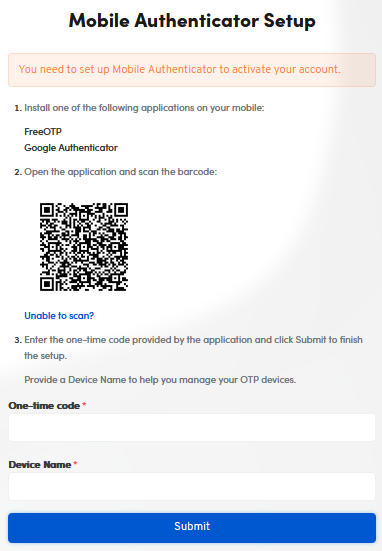
- Install one of the authentication apps indicated in the dialog on your mobile device.
- Using the app on your mobile device, scan the QR code displayed in the dialog: the app should then provide a one time code (OTC).
- Enter the OTC and any name you like to identify the mobile device in the dialog then select Submit.
In subsequent logins, a different dialog appears.
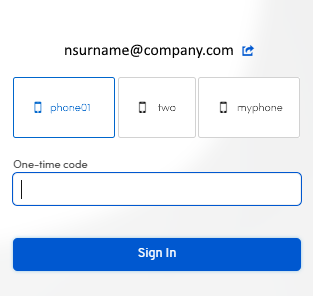
- Run the authentication app on your mobile device, it should produce an OTC.
- Select your device in the dialog.
- Enter the OTC provided by the authentication app.
- Select Sign In.
Log out
To log out, select the icon with your initials in the upper right corner of the page then choose Logout from the pop-up menu.